 REDNECK ENGINEERING
Circuit training app with weight tracking for Android
Set&Rep, a workout log for Android, runs a circuit station by station, with countdowns for rest and timed stations. After each round you log reps and weight for every station, and each exercise keeps its own history. It isn't out for iPhone, and the free version shows ads, including during a session.
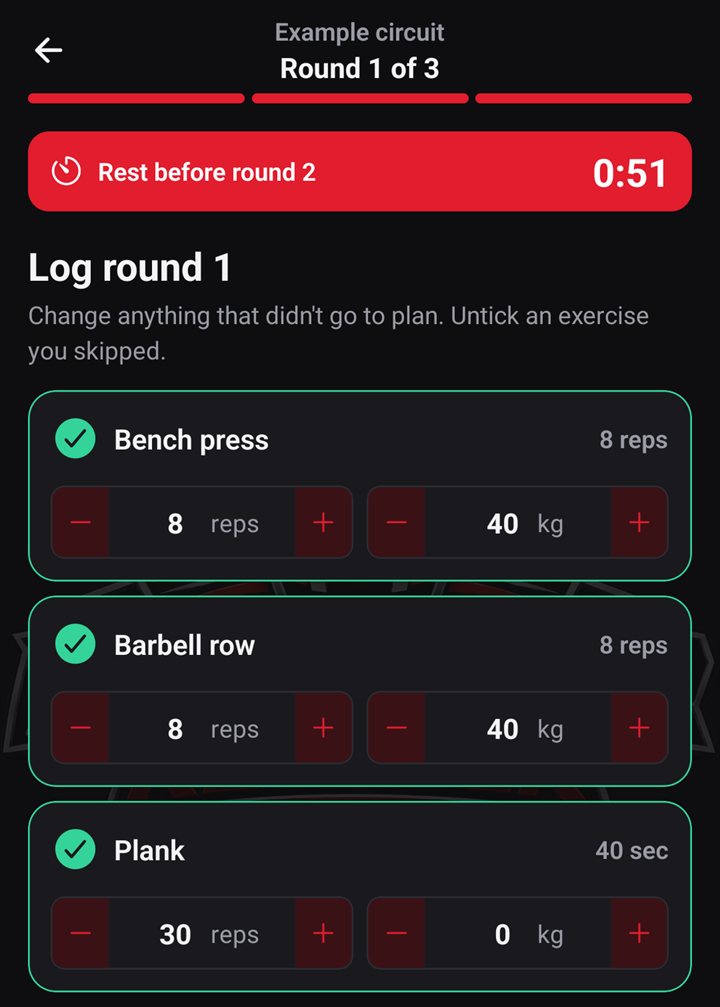
The sessions, circuits and numbers in this post are example data, made for the screenshots. No one trained with them.
Set up the circuit
A circuit sits inside a session. Open the Sessions tab and tap a session, or tap the plus at the top to make one. Then start the circuit in one of two ways:
- Add circuit, below the session's list of exercises. It adds an empty circuit at the end of the session.
- Move to a circuit, for an exercise already in the session. This is the button with two arrows on the exercise's card; it shows no text. If the session has no circuit yet, the exercise becomes the first station of a new one. If it has one, you pick that circuit or New circuit from a list.
A new circuit opens this form, either way. It's titled Edit circuit for a new circuit too.
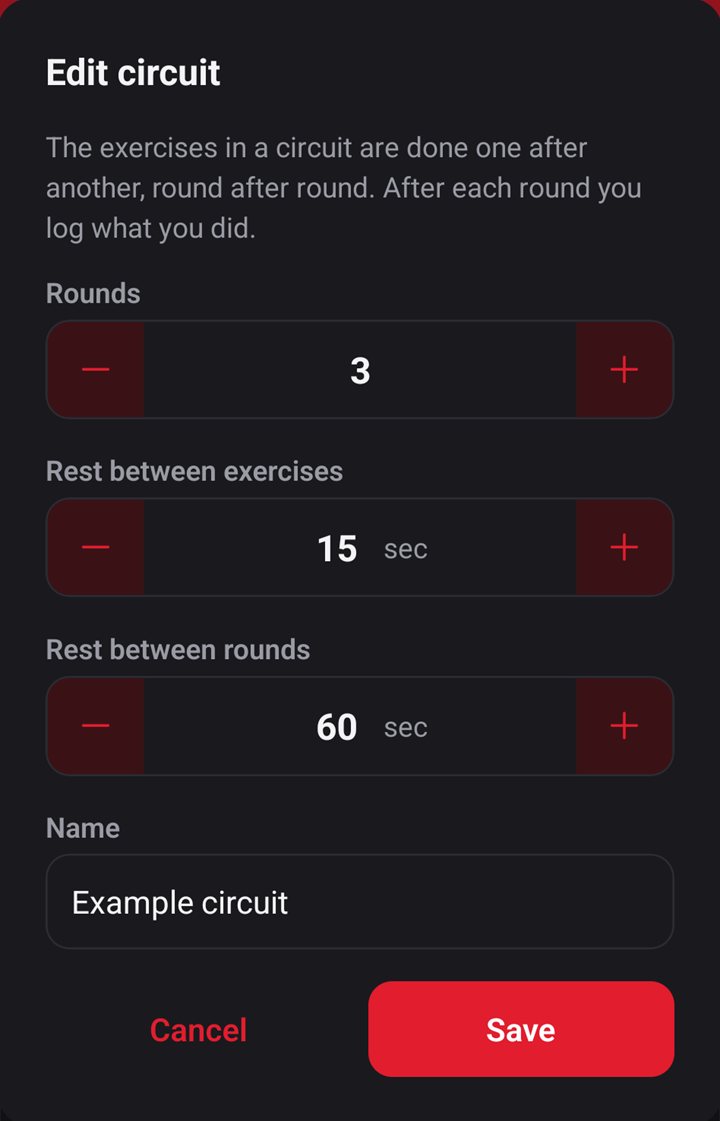
A new circuit starts at 3 rounds, 15 seconds between exercises and 60 seconds between rounds. The name is optional. Change what you want and tap Save. Then add the stations:
- Tap Add exercise inside the circuit's block. The Add exercise button below the block adds to the session, not the circuit.
- Pick an exercise, or tap Create new exercise.
- Tap the pencil on the station's target. Choose Reps or Time, set the number and tap Save. A station added this way starts at 10 reps.
Cardio exercises are always timed in a circuit. Log round shows no reps or kg for them; they're logged as time.
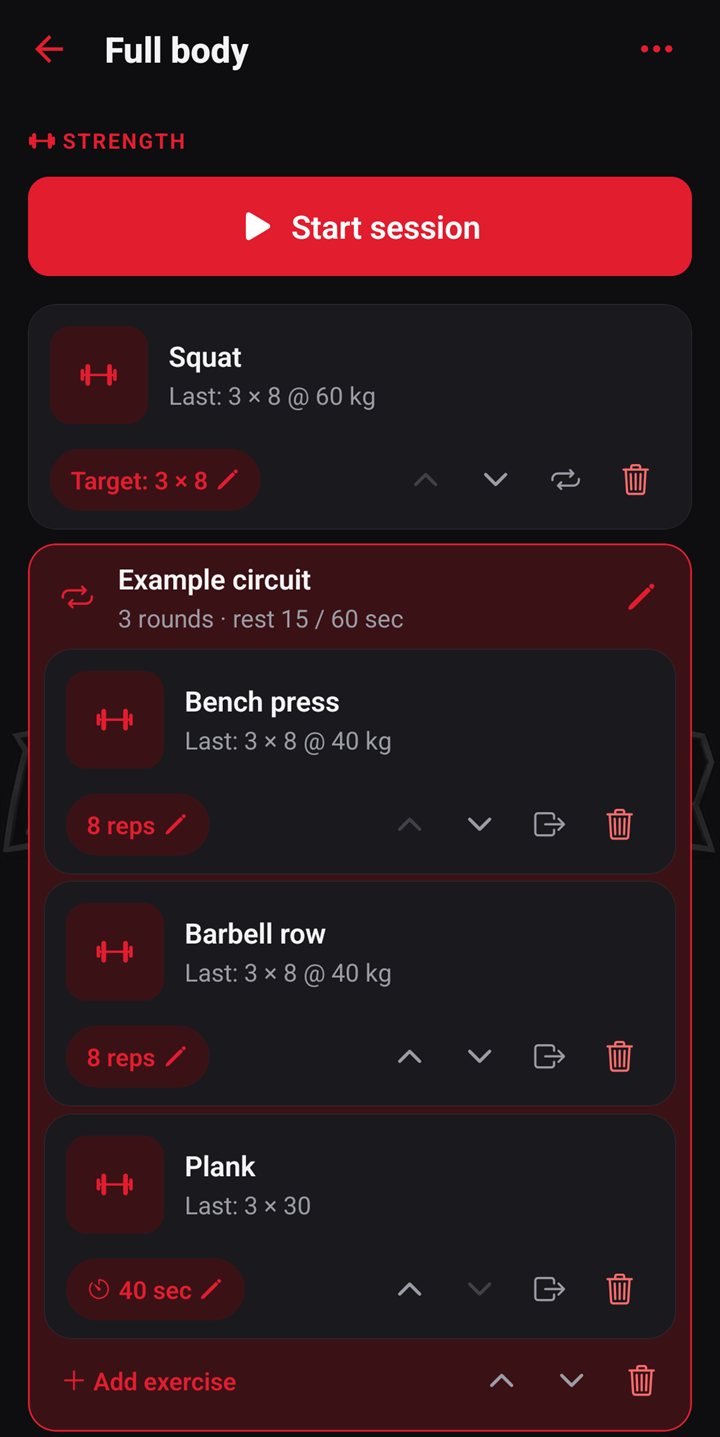
There's no weight to fill in here. You enter weight when you log a round, and on a new exercise it starts at 0 kg.
Run it
Tap Start session, tap the circuit in the session's list, then tap Start round 1.
A station with a reps target waits for you: do the reps and tap Done.
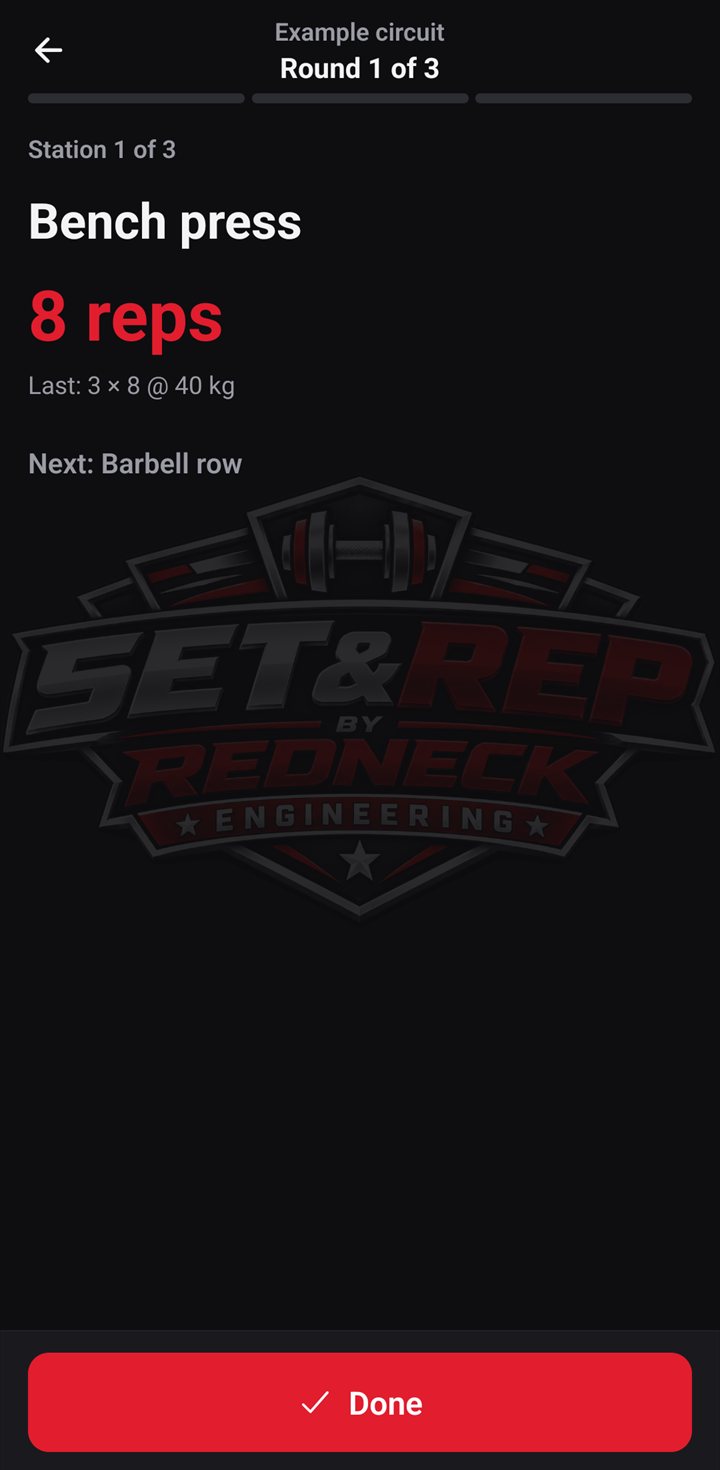
Next comes a Rest countdown, with +15 sec and Skip rest. At zero the next station starts.
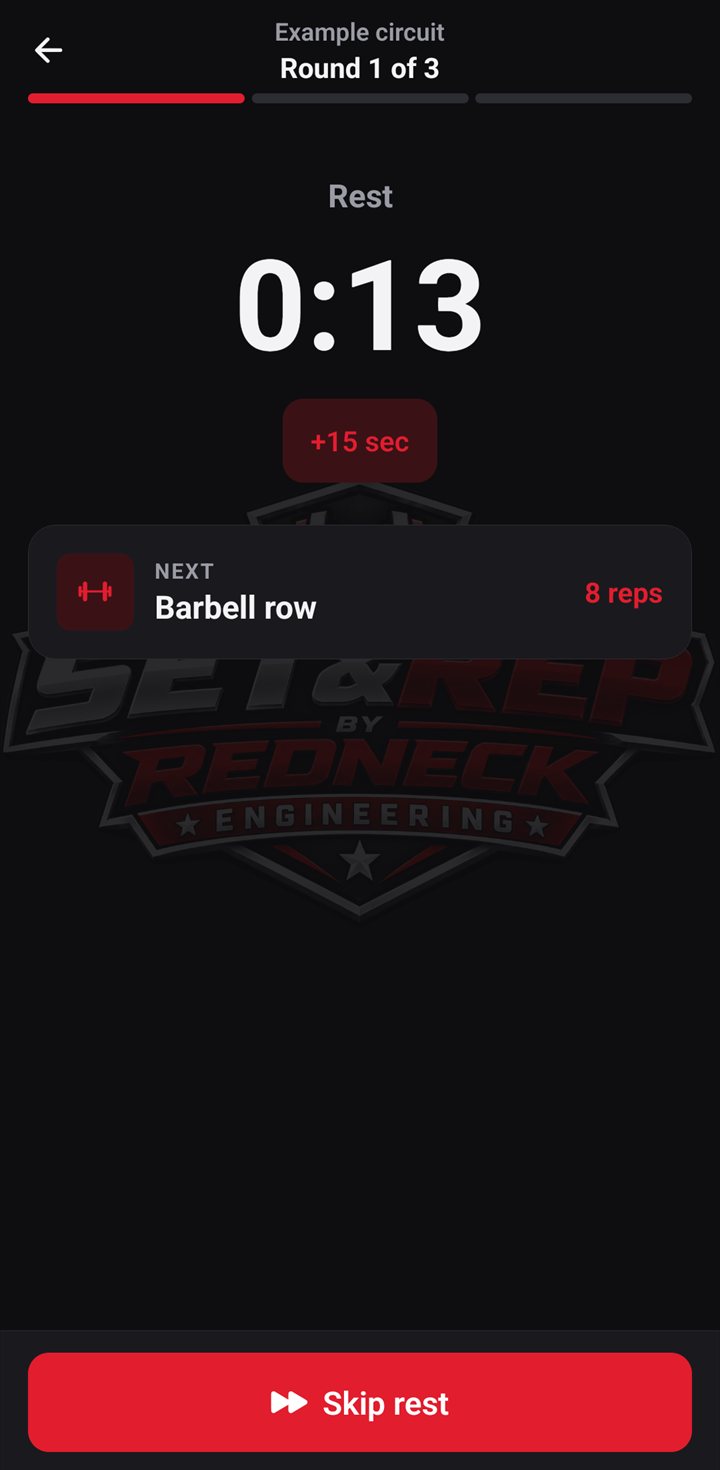
A timed station counts down and moves on by itself. Done ends it early.
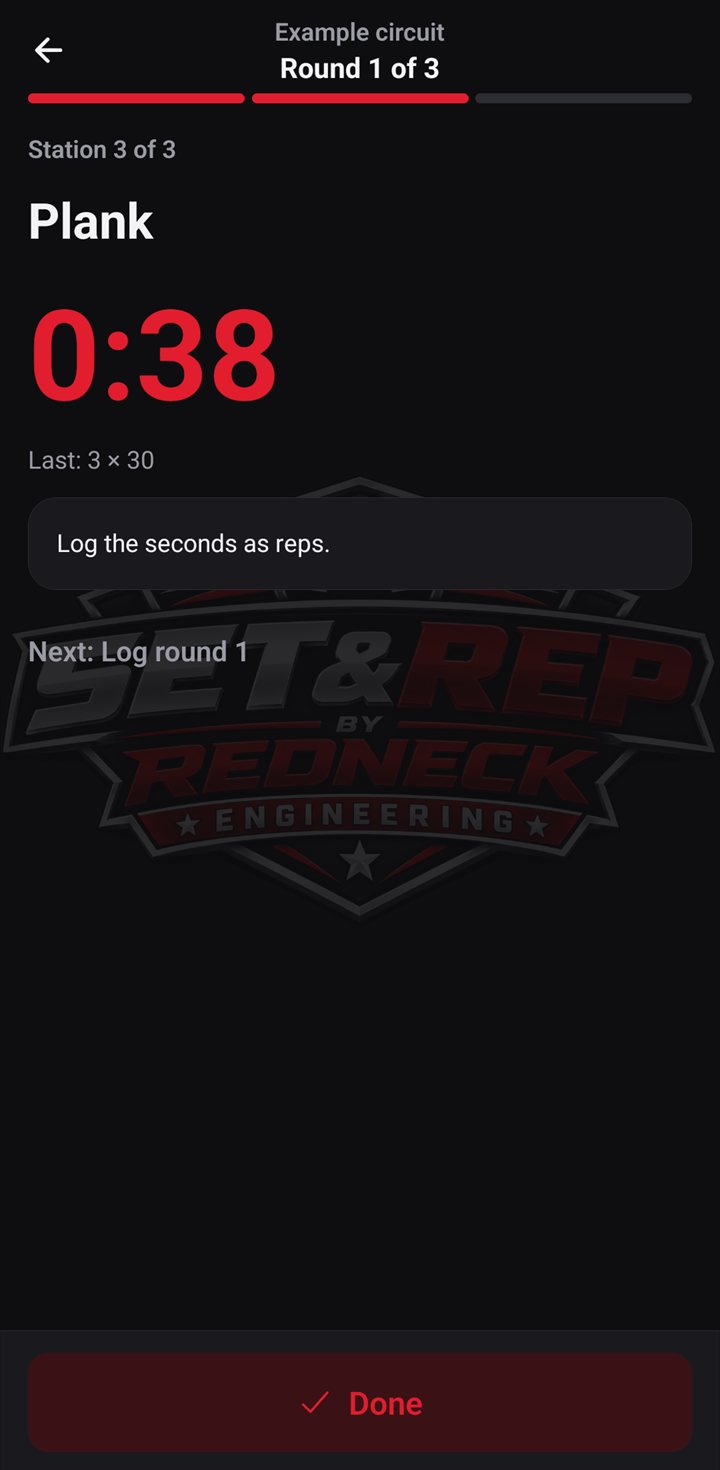
From round 2, the line under a reps station's target shows what you logged in the round before.
Log weight and reps after each round
After the last station comes Log round 1, the screen at the top of this post. Every station except a cardio one has a reps field and a kg field.
- Reps start from the station's target. A timed station is different; see below.
- Weight starts from last time. On a new exercise it starts at 0 kg, so this is where you enter it the first time.
- Change anything that didn't go to plan, untick a station you skipped, and tap Save round.
- The weight you save is where the rounds still to come start.
The rest before the next round starts as soon as the last station is done, and runs while you log. Save in time and the countdown carries on; the next round starts at zero, or when you tap Start now. If it runs out first, the next round waits until you save, and then you tap Start round 2. Once a round is saved, End the circuit here stops early and keeps what you logged. Saving the last round closes the circuit.
The three bars at the top count the stations in a round, not rounds. That's why they're full on the screen for round 1 of 3.
Why Plank says 30 reps against a 40 sec target
A timed station's time runs the countdown. What you log for it is a number in the reps field, which is why Plank from the app's exercise list carries the note "Log the seconds as reps." That field starts from last time's number, not from the countdown. Here last time's number is 30, an earlier example value. If you held it for 40 seconds, change it to 40. An exercise with no log yet starts from the station's reps number instead.
See each exercise's history
A saved round goes into the exercise's log as one set, so three saved rounds of 8 show as 3 × 8 on that date. To see it, tap the exercise on the Exercises tab or on the session screen, then tap History. Your next session's Last lines and starting weights come from these logs.
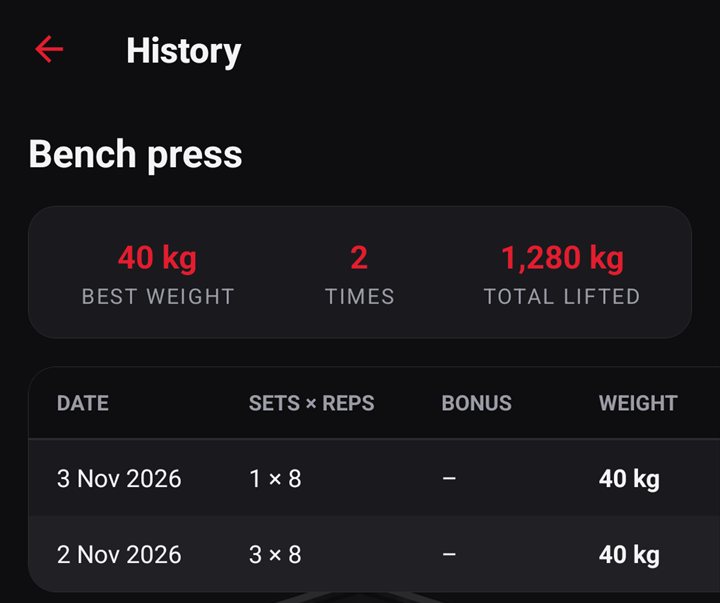
If a station is a machine, you can keep its photo and settings on the exercise. Both show on the station's screen.
Example settings to type in
These are example settings, with the numbers from this post's screenshots, to show what goes where. Swap in your own exercises. You type them into the app yourself; no import or backup file comes with this post. They aren't a recommendation for what to train.
| In the app | Example settings |
|---|---|
| Name field under New session | Your session's name, such as Back |
| Circuit Name | Your circuit's name, such as Circuit A |
| Rounds | 3 |
| Rest between exercises | 15 sec |
| Rest between rounds | 60 sec |
| Station 1 | Your exercise, Reps: 8 |
| Station 2 | Your exercise, Reps: 8 |
| Station 3 | Your exercise, Time: 40 sec |
Weight isn't on the card, because you enter it at Log round.
Ads in the free version
The free version shows banners, including during a session: on the session's list, which you pass on the way to a circuit, and on a normal exercise's logging screen.
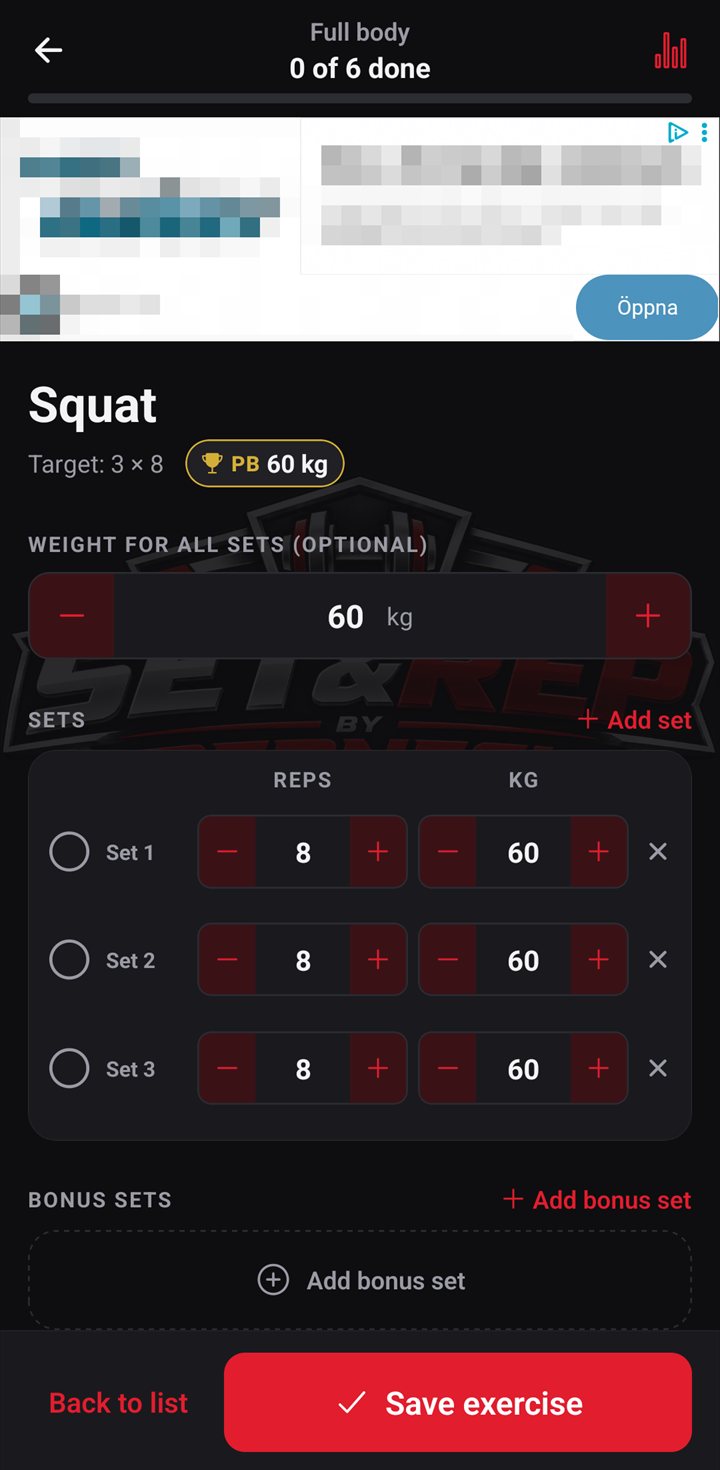
The circuit screens in this post show no banner, but that isn't an ad-free mode. When a session opens and an ad is ready, the app asks Ad-free session? Watch one ad to the end and no ads show until that session is finished. Premium removes all ads: for as long as a monthly or yearly subscription runs, or for good with the one-time Lifetime purchase.
Where to find circuits in the app
Open Sessions, tap a session and tap Add circuit. Add stations with the circuit's Add exercise, then tap Start session.
Get Set&Rep on Google Play. The Set&Rep app page has more about it, and there are more posts on the Set&Rep blog.
How these posts are made: Redneck Engineering writes them with the help of AI and reviews them before they are published. Every claim about the app is checked against the app as it is today, the screenshots are from the app, and facts that don't come from the app have a dated source. Found a mistake? Email cj@rocsales.se and we'll fix it.