 REDNECK ENGINEERING
An app to save gym machine settings, with photos
You find the right seat height on a machine, and by next week it's gone. The fix is simple: take one photo of each machine, write its settings in a short note, and keep both where you log your sets. Your phone's camera and a notes app are enough to start, and Set&Rep, a workout log for Android, keeps the photo and the note on the exercise itself and shows them on the workout screen while you log.
The method: one photo and one note per machine
Machines at the same gym often look alike, and most have their own adjustments: a seat that moves up and down, a back pad, a foot plate or a handle that moves. Many show a number or a row of holes for each one. That number is what you want to keep.
For each machine you use:
- Take a photo that shows the whole machine, so you can tell which one it is next time.
- Write each setting down the way the machine shows it, as a number or a hole.
- Keep the photo and the note together, somewhere you'll see them before you sit down.
Step 3 is where the phone's own apps make it harder. The photo ends up in your gallery between hundreds of others, the note sits in a notes app, and your sets are logged somewhere else again. It works, but at the machine you're switching between three apps.
What to put in the note
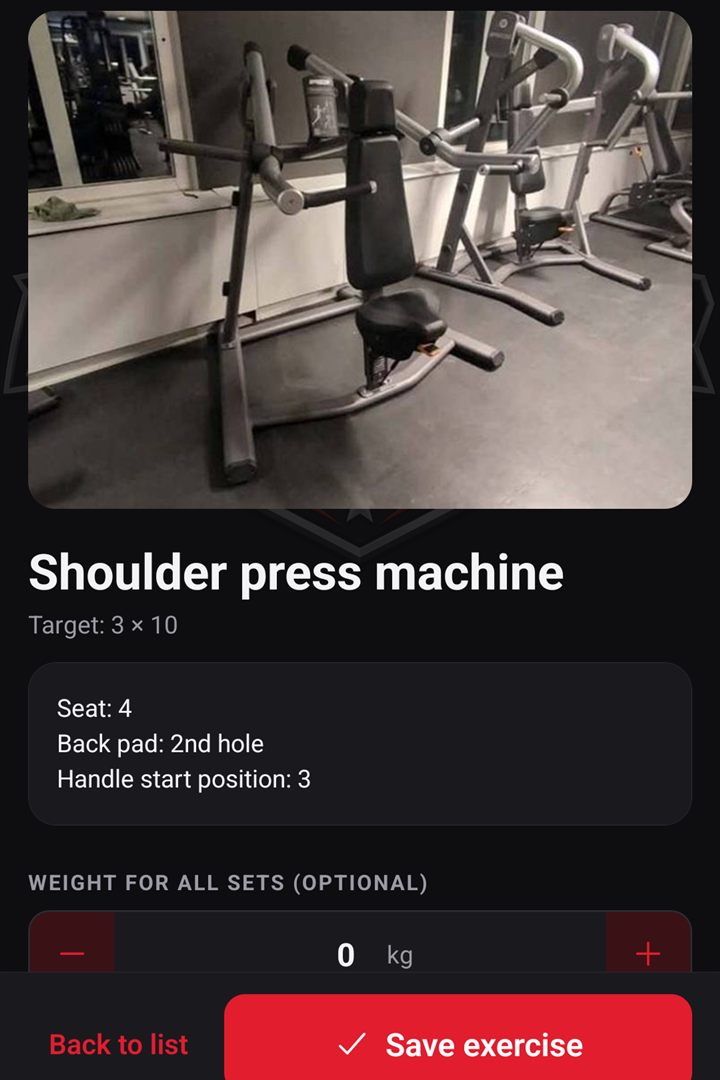
Only what you set once and then leave alone. A note for a shoulder press machine might read:
- Seat: 4
- Back pad: 2nd hole
- Handle start position: 3
Leave the weight out. It can change from one session to the next, so it belongs in your log with the sets and reps, not in the note. The note is for what stays the same.
Doing it in Set&Rep
In Set&Rep every exercise can carry one photo and a notes field. The notes field is meant for this: its placeholder reads "Technique, machine settings, tips…".
1. Create the exercise with your photo
- Open the Exercises tab and tap the plus button at the top (or New exercise if the list is empty). You can also do it while building a session: Add exercise, then Create new exercise.
- Fill in Exercise name with something that tells similar machines apart, such as "Chest press, by the window".
- Leave Exercise type on Strength.
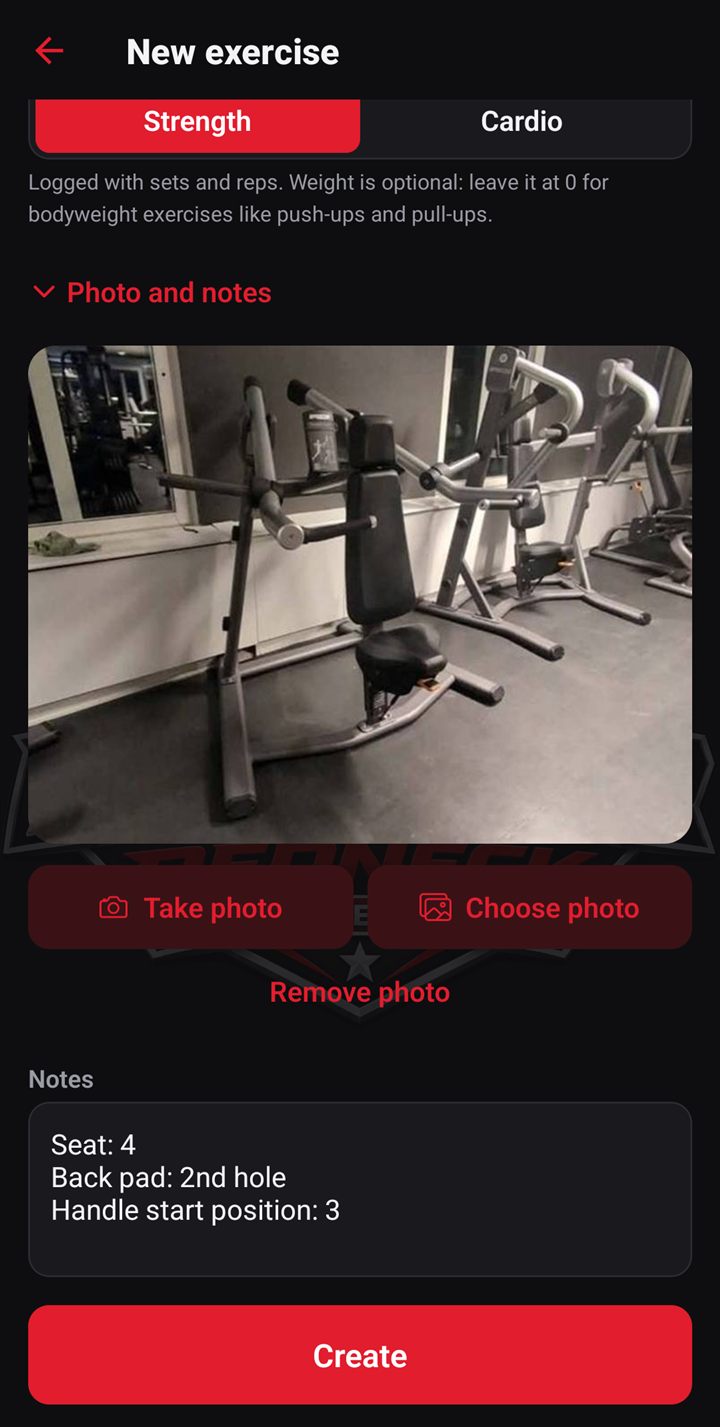
- Tap Add a photo or notes. The heading then reads Photo and notes, as in the screenshot below.
- Tap Take photo to open the camera inside the app, or Choose photo to pick one you already took. If your gallery already holds machine photos from the method above, this is where they come in.
The first time, Android may ask whether Set&Rep may use the camera or your photos.
2. Put the settings in the notes
In the Notes field below the photo, type the settings, one per line. Tap Create. The photo and the note now belong to the exercise, in every session you add it to.
3. Add it to a session
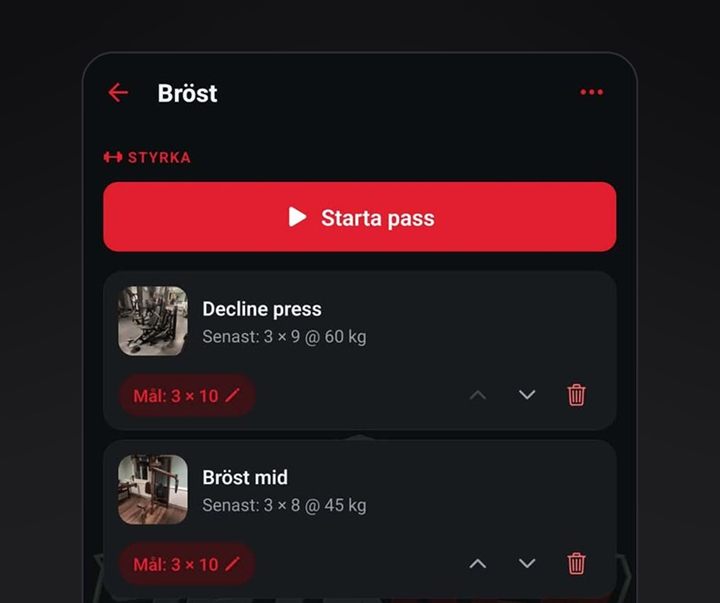
Open the session on the Sessions tab, tap Add exercise and pick it under My exercises. In the session's list, each exercise shows a small version of its photo and a line with last time's numbers, such as "Last: 3 × 10 @ 40 kg", so you can tell the machines apart at a glance.
This one is from real use, in the app's Swedish version:
While you log
Tap Start session, then tap an exercise in the list. Its screen shows the machine photo at the top, then the name and target, then your note. Below them, the sets are already filled in with the reps and weight from last time, or with the session's target the first time. Set the seat from the note, check the numbers, and change only what changed.
When a setting changes
Gyms swap machines, and you may settle on a different seat height. Tap the exercise in the session's list or on the Exercises tab, change the photo or the note, and tap Save.
Keeping your photos
Set&Rep has no account, and your training data stays on your phone. There are two ways to keep a copy, both under More → Data:
- Export backup makes one file with all sessions, exercises, history and photos. Save it somewhere other than the phone, such as Google Drive, and import it on a new phone.
- Back up to Google adds your data to the phone's own Google backup, if backup is also on in the phone's settings. Google allows 25 MB per app: sessions and history should fit for a long time, and photos go in only while there's room, newest first. To keep every photo, export a backup file as well.
Before you install
Set&Rep is for Android; it isn't out for iPhone. You can get it on Google Play, and the Set&Rep app page has more about it.
The free version shows ads, including a banner during a session. When a session opens and an ad is ready, the app offers to play one ad instead; watch it to the end and that session has no ads. Premium removes the ads: monthly, yearly or as a one-time Lifetime purchase.
More posts on logging your training are on the Set&Rep blog.
How these posts are made: Redneck Engineering writes them with the help of AI and reviews them before they are published. Every claim about the app is checked against the app as it is today, the screenshots are from the app, and facts that don't come from the app have a dated source. Found a mistake? Email cj@rocsales.se and we'll fix it.